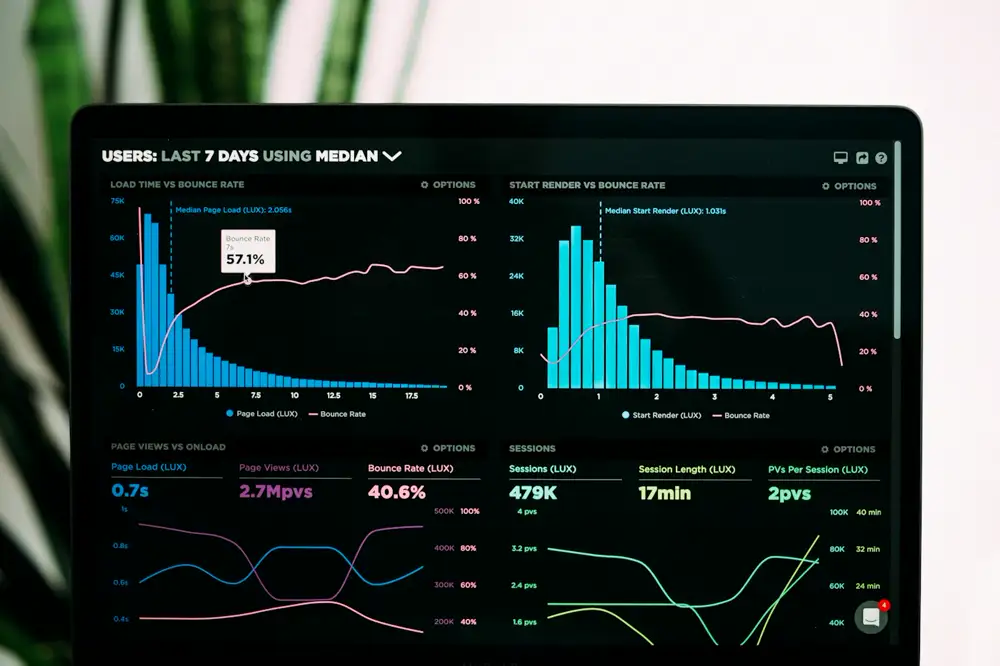
Short answer: a WordPress site is usually slow because of one or more of these: cheap or overloaded hosting, an old PHP version, no page caching, large images, too many or badly built plugins, a heavy theme or page builder, too many third-party scripts, or a bloated database. Test the site first in Google PageSpeed Insights, find which of these applies, and fix them in that order. Most slow sites need a few targeted fixes, not a rebuild.
We fix slow sites every month through our WordPress speed optimization service, and the same handful of problems come up again and again. This guide shows how to find out what makes your WordPress site slow, the 10 common causes, and how to fix each one, whether you do it yourself or hire someone.
Chapter 01
How to Check What Makes a WordPress Site Slow
Don’t guess. Measure first, so you know what to fix and can prove the fix worked:
- Google PageSpeed Insights. Test your homepage and one inner page, on the mobile tab. Note the performance score and the Core Web Vitals: LCP (how fast the main content appears), INP (how fast the page reacts to taps) and CLS (how much things jump).
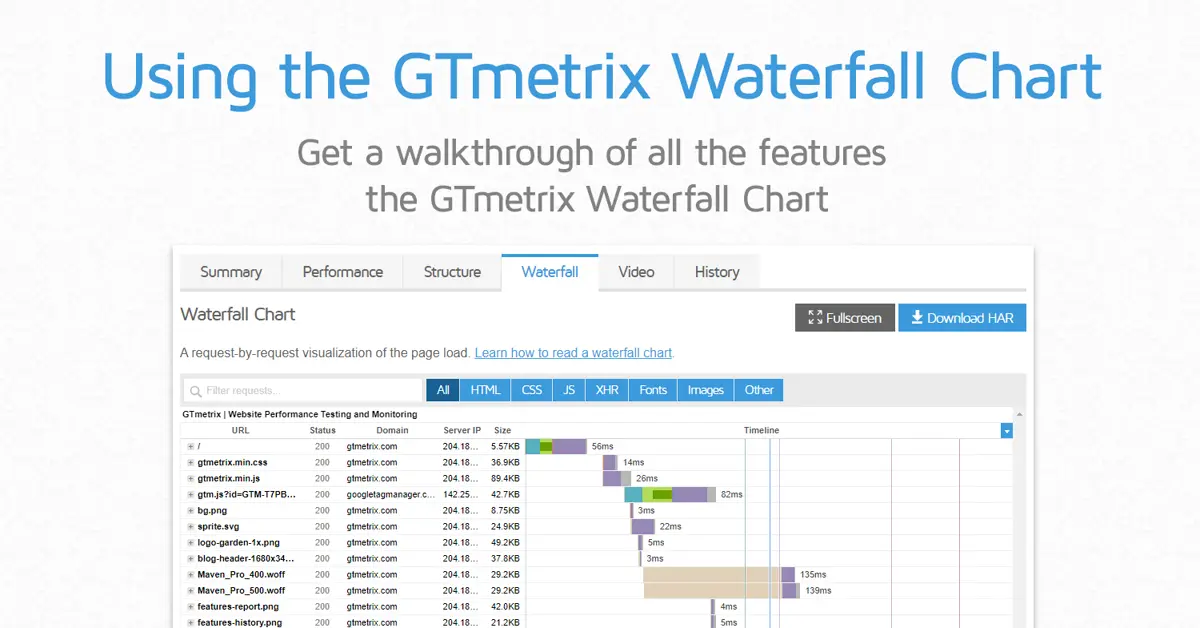
- A waterfall test such as GTmetrix. It lists every file the page loads, in order, with its size and time, so you can see what’s heavy.
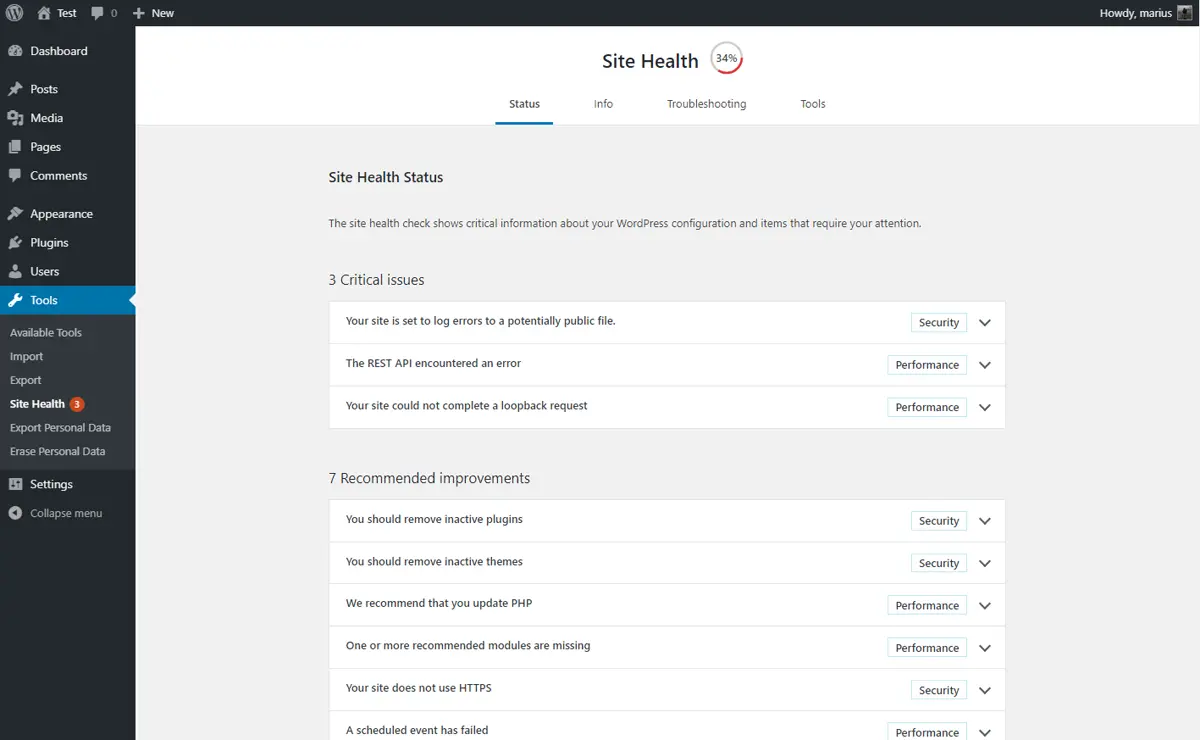
- WordPress Site Health (Tools > Site Health). It flags an old PHP version, missing caching and other server problems.
- Query Monitor, a free plugin, if the slowness is inside WordPress itself: it shows slow database queries and which plugin runs them.

Test a few times and at different hours. If only certain hours make your WordPress site slow, the hosting server is probably overloaded. If it’s slow all the time, the cause is more likely inside the site.
Pro tip: write down your scores before you change anything. Fix one thing at a time and re-test, so you know which change actually helped.
Chapter 02
Why Is My WordPress Site Slow? The 10 Usual Causes
Here are the causes we find most often, roughly in order of how much difference fixing them makes. Each one comes with the fix.
Chapter 03
Cheap or Overloaded Hosting
Hosting is the base everything else sits on. A very cheap shared plan puts hundreds of sites on one server; when a neighbour gets busy, it makes your WordPress website slow too. The server’s location matters as well: a site whose visitors are in Pakistan but whose server is far away adds delay to every request.
Fix: move to a reputable host with LiteSpeed or NGINX servers, enough memory for WordPress, and a data centre reasonably close to your visitors (or a CDN, see below). For a business site, a few thousand rupees more a year on hosting is often the single best way to speed up WordPress.
Chapter 04
An Old PHP Version
WordPress runs on PHP, and newer PHP versions are much faster than old ones. WordPress’s hosting requirements recommend PHP 8.3 or greater. Many older sites in Pakistan still run PHP 7.x because nobody ever changed it after launch.
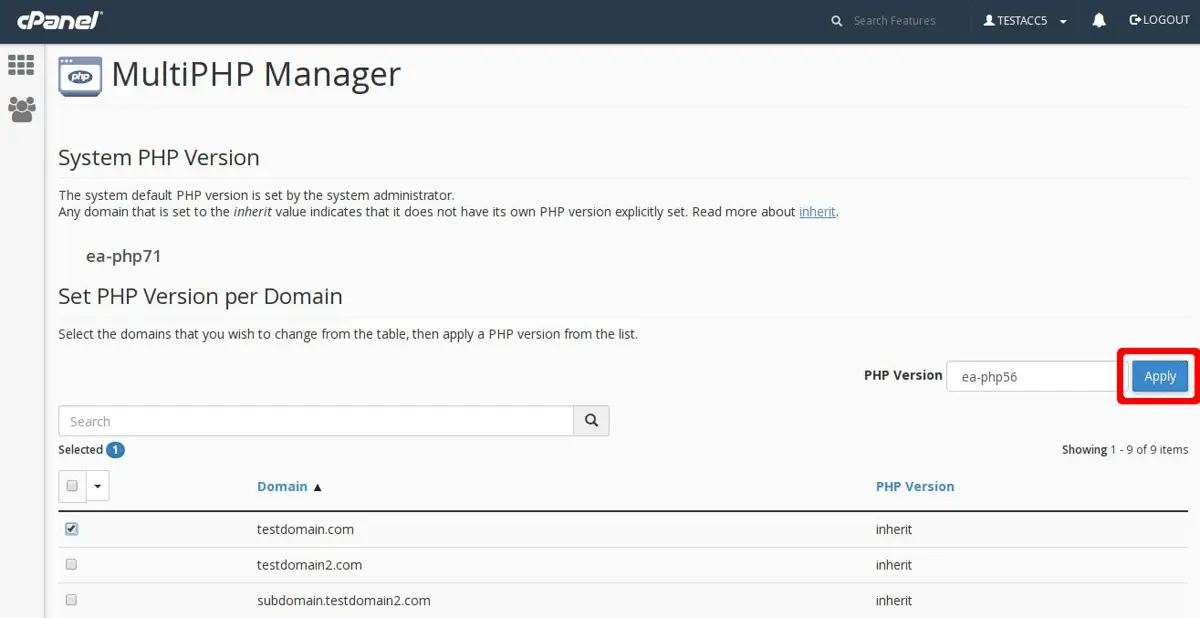
Fix: in cPanel, open MultiPHP Manager (or your host’s PHP settings) and switch to the newest version your plugins support. Take a backup first and test the site afterwards, because very old plugins can break on new PHP. On older sites, this one change often makes WordPress slow pages noticeably quicker.
Chapter 05
No Page Caching
Without caching, WordPress builds every page from scratch for every visitor: it runs PHP, queries the database and assembles the HTML each time. With page caching, it builds the page once and serves a ready copy to everyone else.
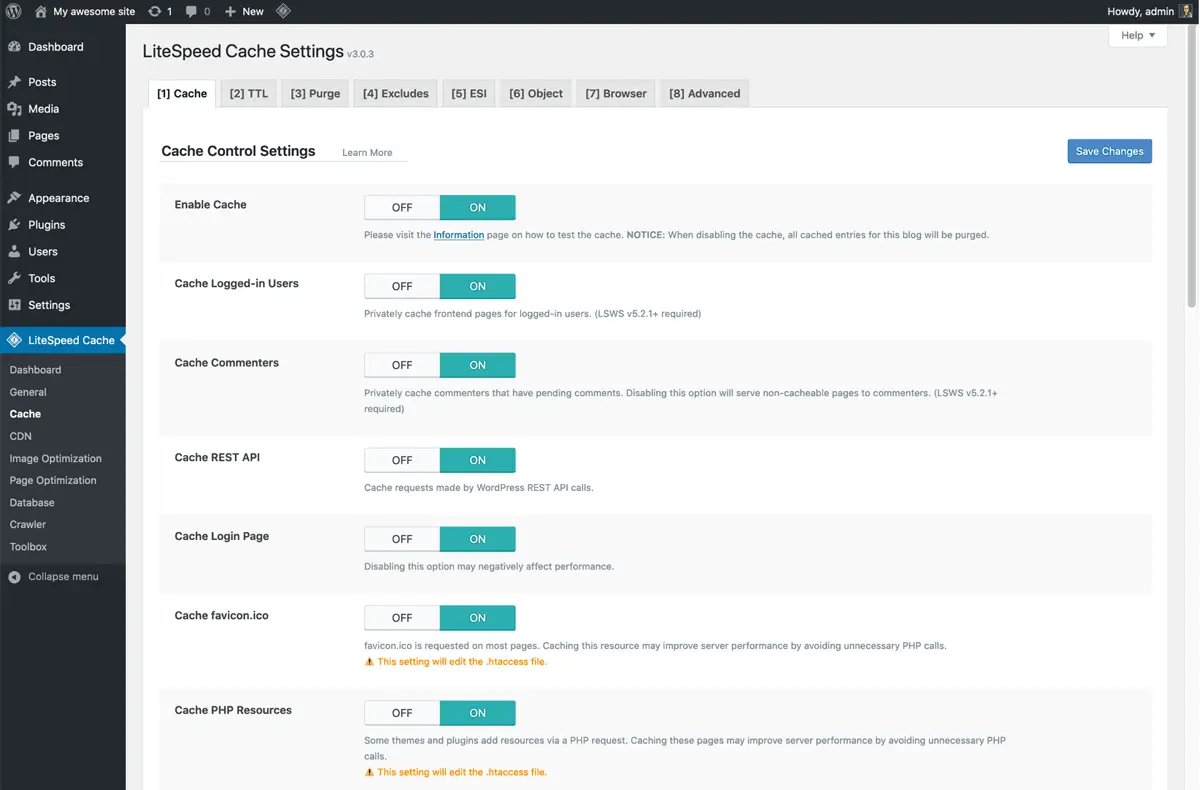
Fix: use the caching plugin that matches your server: LiteSpeed Cache on LiteSpeed hosting, or a plugin such as WP Rocket or W3 Total Cache elsewhere. Use only one caching plugin; two fight each other.
Chapter 06
Large, Uncompressed Images
Images are the most common reason a page is heavy. A single photo straight from a phone can be 4–5 MB, more than the rest of the page combined. On mobile data, that alone makes a WordPress site slow.
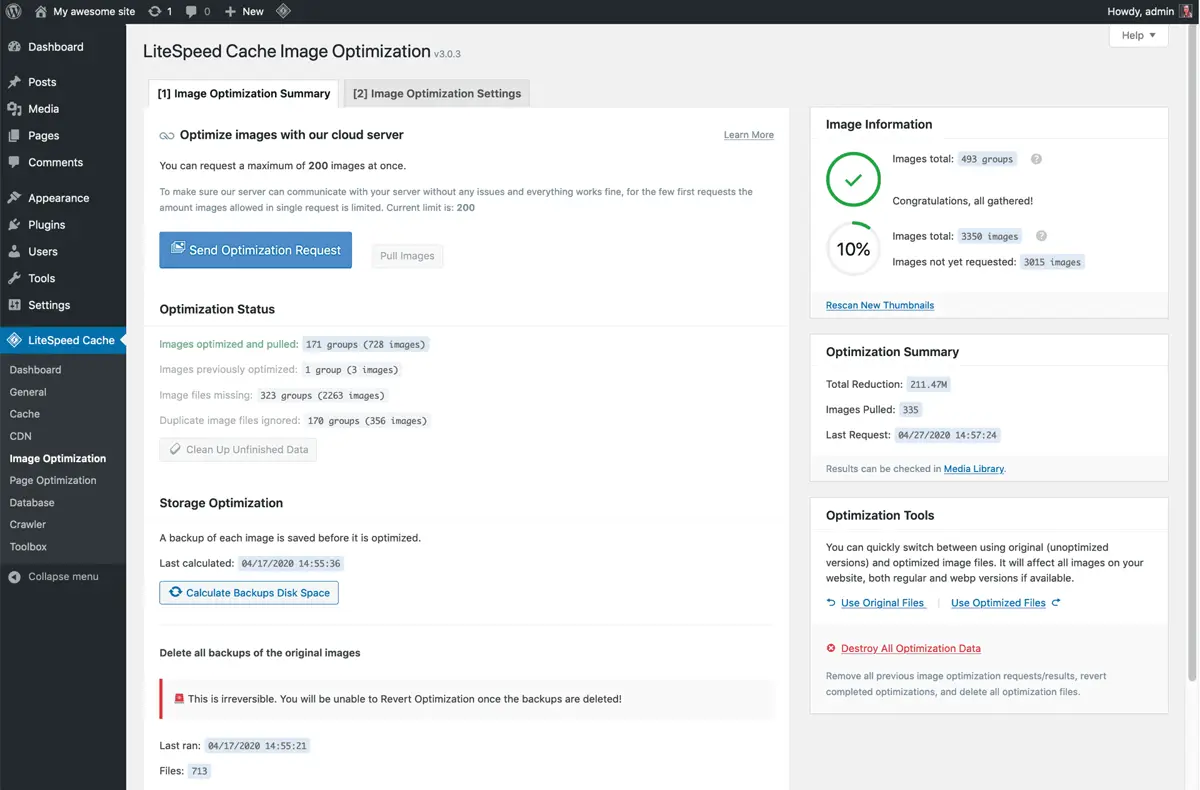
Fix: resize images to the size they’re shown, compress them, serve WebP, and lazy-load images below the fold. Don’t lazy-load the main image at the top of the page; load it first instead. An image optimization plugin can do most of this for images already on the site.
Chapter 07
Too Many Plugins, or a Few Bad Ones
The number of plugins matters less than what they do. One badly built plugin that runs heavy database queries on every page can slow a site more than twenty light ones. Sliders, social feeds, related-post plugins and some security plugins are common culprits.
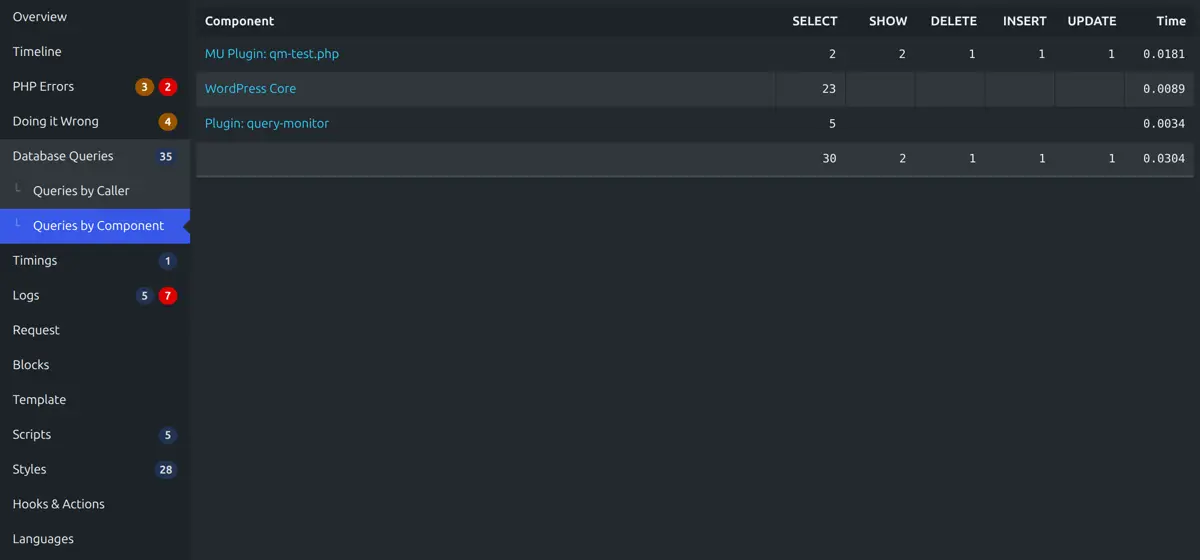
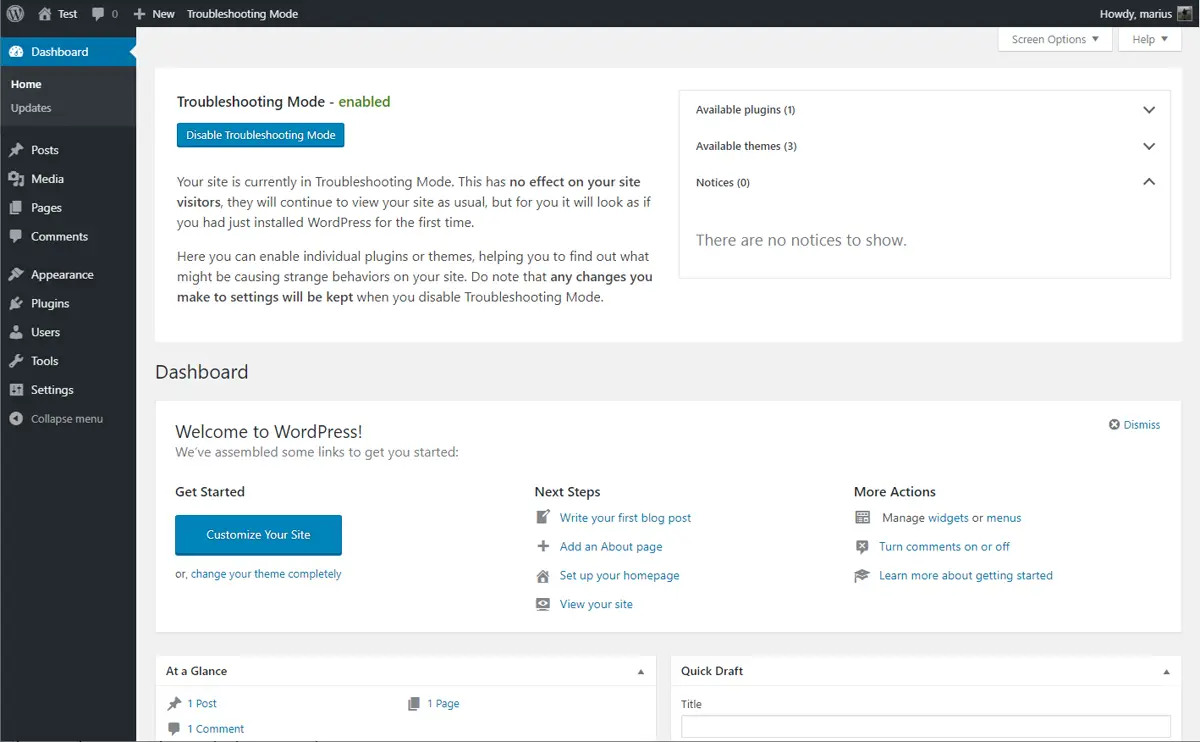
Fix: delete plugins you don’t use, replace heavy ones with lighter alternatives, and test suspects one at a time. The Health Check plugin’s troubleshooting mode lets you turn plugins off only for yourself, so you can find the slow one without breaking the live site.
Chapter 08
A Heavy Theme or Page Builder
Multipurpose themes and page builders load code for hundreds of features, even if your page uses three. Nested sections, animations and sliders add more. This is a frequent reason page builders make a WordPress site slow on mobile even when the hosting is fine.
Fix: remove unused sections and animations, turn off builder features you don’t use, and avoid sliders at the top of the page. If the theme is the problem at its core, a lightweight theme or a custom one is the lasting fix.
Chapter 09
Too Many Third-Party Scripts
Chat widgets, several tracking pixels, embedded social feeds, Google Fonts in five weights, maps and videos all load files from other servers. Each adds requests and can block the page while it loads.
Fix: keep only the scripts you actually use, load tracking through one Google Tag Manager container, delay chat widgets until the visitor interacts, use one or two font weights, and show a video thumbnail that loads the player only when clicked.
Chapter 10
A Bloated Database
Over the years, WordPress stores thousands of post revisions, spam comments, expired temporary data (transients) and leftovers from deleted plugins. A big, messy database makes every query slower, especially in the admin area.
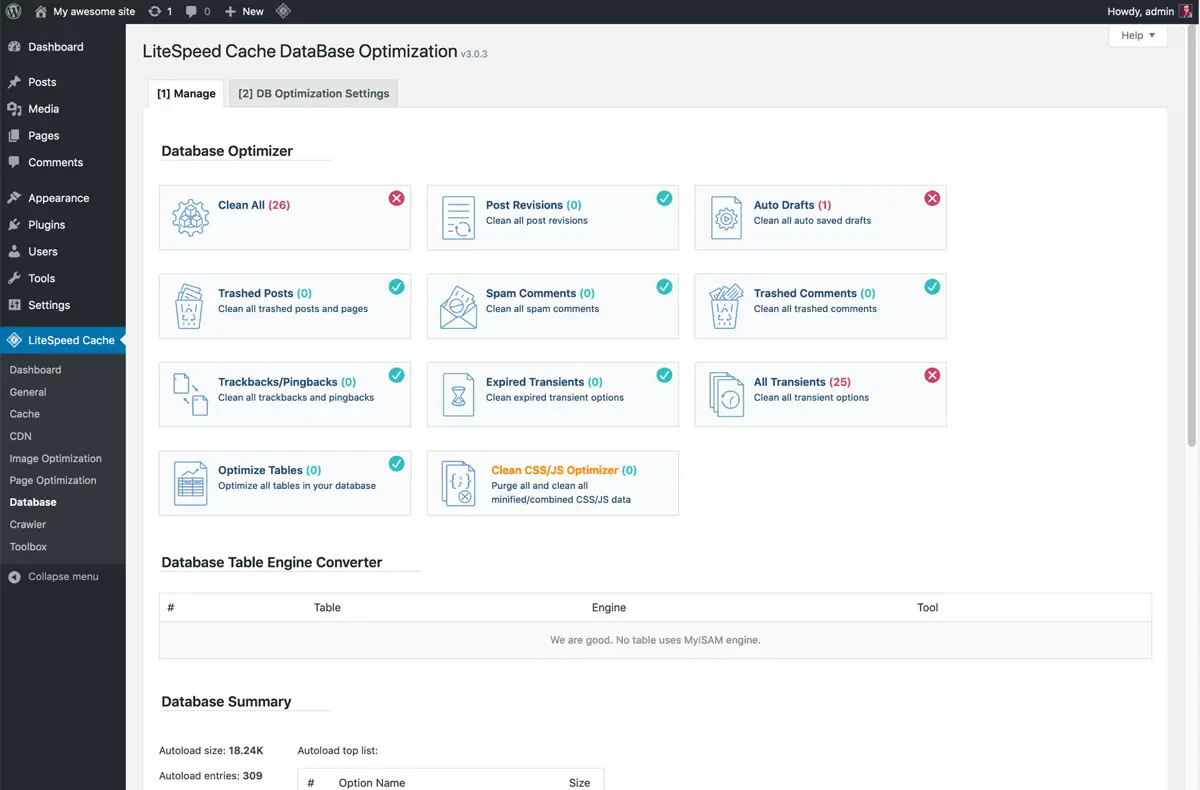
Fix: take a backup, then clean revisions, spam, trash and expired transients with a database optimization tool, and limit how many revisions WordPress keeps.
Chapter 11
No CDN for Visitors Far from the Server
If many of your visitors are abroad, for example overseas Pakistanis or clients in the UK and the Gulf, every file travels a long way from your server. A content delivery network (CDN) keeps copies of your images, CSS and scripts on servers around the world.
Fix: turn on your host’s CDN or a service such as Cloudflare, then test from the countries your customers are in.
Chapter 12
Why Is the WordPress Dashboard Slow?
Sometimes visitors see a fast site but the admin area crawls. When the WordPress dashboard slows to a crawl, the usual causes are plugins that load reports and notices on every admin page, the WordPress Heartbeat running too often, WooCommerce analytics on a large store, and a bloated database. Caching doesn’t help here, because admin pages are never cached.
Fix: use Query Monitor on a slow admin page to see which plugin is responsible, reduce the Heartbeat frequency, clean the database, and make sure the hosting plan has enough memory for the admin area.
Chapter 13
Is Your WordPress Site Slow Only on Mobile?
A WordPress site that feels fine on office Wi-Fi can be slow on a phone on mobile data. Phones have slower processors, so heavy JavaScript from page builders, sliders and chat widgets hurts more. Google also measures speed on mobile first. Test on a real budget Android phone on mobile data, and see our checklist on how to make a website mobile friendly for the layout side.
Chapter 14
How to Speed Up WordPress: The Order We Follow
When a client asks us to speed up WordPress, we work in this order, because the early steps usually give the biggest gains for the least risk:
| Step | What we do | Why first |
|---|---|---|
| 1. Measure | PageSpeed Insights, a waterfall test and Site Health on key pages | Shows what’s really slow |
| 2. Back up | Full files and database backup | Every later step can be undone |
| 3. Server | Newest supported PHP, enough memory, good hosting | Speeds up every page at once |
| 4. Caching | One page cache, plus browser caching | Biggest gain for most sites |
| 5. Images | Resize, compress, WebP, lazy-load below the fold | Usually the heaviest part of a page |
| 6. Plugins and scripts | Remove, replace or delay heavy ones | Cuts code the page doesn’t need |
| 7. Database | Clean revisions, transients, spam | Faster queries, faster admin |
| 8. Re-test | Same tests as step 1, on mobile | Proves the result |
On our own homepage, compressing images, loading the main image first and cutting unused code took the mobile PageSpeed score from 53–66 to 94–97. None of it needed a redesign; it needed the right fixes in the right order.
Chapter 15
Common Mistakes When Fixing a Slow WordPress Site
- Installing several speed plugins at once. Two caching or optimization plugins often conflict and can break the layout.
- Chasing a perfect score. A score of 90+ with good Core Web Vitals is excellent. Real visitors matter more than the last few points.
- Working on the live site without a backup. Speed changes can break layouts and forms; always keep a way back.
- Fixing only the homepage. Product, service and blog pages are where most visitors land. Test them too.
- Ignoring the cause. Caching hides a slow server for a while, but a badly built plugin or theme will come back to bite.
| Symptom | Most likely cause | Where to look |
|---|---|---|
| Slow at busy times only | Overloaded shared hosting | Hosting plan and server load |
| Slow everywhere, high server response time | Old PHP, no caching, slow hosting | Site Health, PHP settings, caching plugin |
| Fast server, heavy page | Images, page builder, scripts | Waterfall test |
| Slow admin, fast front end | Plugins, database, Heartbeat | Query Monitor in the dashboard |
| Slow only on phones | Heavy JavaScript, large images | PageSpeed Insights mobile tab |
Chapter 16
A Quick Checklist When Your WordPress Site Slows Down
Keep this list next to you when you work through a WordPress website slow on mobile or desktop. Tick each item before moving to the next:
- Scores recorded in PageSpeed Insights for the homepage and two inner pages, on mobile.
- A full backup taken, and a way to restore it.
- PHP version checked against WordPress’s recommendation and updated.
- One page caching plugin active, and no second plugin doing the same job.
- Large images resized, compressed and served as WebP.
- Unused plugins deleted; heavy ones replaced or tested in troubleshooting mode.
- Chat widgets, pixels and fonts trimmed to what you actually use.
- Database cleaned of old revisions, spam and expired transients.
- CDN turned on if many visitors are abroad.
- Same tests repeated, and the before-and-after scores saved.
If your WordPress site slows down again after all of these, the problem is almost always in the theme, a custom plugin or the server itself, and that’s the point where a developer saves you time.
Chapter 17
How Long Does It Take to Speed Up WordPress?
For a typical business site, the basic fixes (PHP, caching, images and plugin clean-up) take a day or two including testing. A WooCommerce store with many products, or a site where the theme or a custom plugin is the reason WordPress is slow, takes longer, because each change has to be tested against orders, forms and checkout. A full rebuild is only worth it when the site’s foundation is the problem.
Speed also isn’t a one-time job. New plugins, larger images and theme updates slowly add weight again, so re-test every few months, especially after big changes.
Chapter 18
When to Get Professional Help
You can do the hosting, PHP, caching and image steps yourself with a backup and some patience. Get help when the site is a store taking orders, when changes keep breaking the layout, when the problem is inside the theme or a custom plugin, or when you’ve tried the basics and the WordPress site is still slow.
Code Inns has built 450+ websites since 2014 from Tariq Road, Karachi. Our WordPress speed and maintenance team measures first, fixes on a staging copy, and shows you before-and-after scores, with no advance payment. If your site was built years ago and is slow at its core, our web development team can rebuild it on a fast, lightweight base. If you’re still choosing a platform, our WooCommerce vs Shopify comparison covers speed too.
FAQ
FAQ
Why is my WordPress site slow?
Usually because of slow or overloaded hosting, an old PHP version, no page caching, large images, heavy or badly built plugins, a heavy theme or page builder, too many third-party scripts, or a bloated database. Test the site in PageSpeed Insights to see which applies.
How do I speed up WordPress?
Back up first, then move to good hosting and the newest supported PHP version, add one page caching plugin, compress and resize images, remove or replace heavy plugins and scripts, clean the database, and re-test after each change.
Why is my WordPress dashboard slow?
The admin area isn’t cached, so slow plugins, WooCommerce reports, a bloated database, the Heartbeat API and low hosting memory all show up there. Query Monitor shows which plugin is responsible on a slow admin page.
Do too many plugins make WordPress slow?
Badly built plugins do, whatever the number. One heavy plugin can slow a site more than twenty light ones. Remove what you don’t use and test suspects one at a time.
What PageSpeed score should a WordPress site have?
Aim for 90 or above on mobile with good Core Web Vitals. A perfect 100 isn’t necessary; real visitors care about how fast the main content appears and how quickly the page responds.